A Step-by-Step Expert Guide to Connecting Your HP Printer to Wi-Fi
- workwebsite2
- Jan 17
- 3 min read

Connecting your HP printer to a Wi-Fi network can seem tricky if you are not familiar with the process. Yet, having a wireless printer offers great convenience, allowing you to print from multiple devices without the hassle of cables. This guide walks you through every step to get your HP printer online quickly and reliably.

Check Your Printer’s Compatibility and Network Requirements
Before starting, confirm that your HP printer supports wireless connections. Most modern HP printers have built-in Wi-Fi, but some older models may require a wireless adapter.
Also, ensure you have the following ready:
Your Wi-Fi network name (SSID)
The Wi-Fi password (network key)
A stable Wi-Fi connection with good signal strength near the printer
If your network uses advanced security settings or hidden SSIDs, you might need additional configuration steps, which will be covered later.
Prepare Your Printer for Wireless Setup
Start by turning on your printer and making sure it is in a ready state. If it has a touchscreen or control panel, navigate to the Wireless Setup Wizard or Network Settings menu.
For printers without a touchscreen, you may need to press and hold the wireless button until the wireless light blinks, indicating it is ready to connect.
Connect the Printer to Your Wi-Fi Network
Follow these steps to connect your HP printer to Wi-Fi:
On the printer’s control panel, open the Wireless Setup Wizard.
The printer will scan for available Wi-Fi networks.
Select your Wi-Fi network name (SSID) from the list.
Enter your Wi-Fi password carefully. Use the on-screen keyboard or control panel buttons.
Confirm the connection. The printer will attempt to connect to the network.
Once connected, the wireless light should turn solid, indicating a successful connection.
If your printer does not find your network, check that the router is broadcasting the SSID and that you are within range.
Install HP Printer Software on Your Computer or Mobile Device
To print wirelessly, install the official HP printer software or app on your device. This software helps your computer or smartphone communicate with the printer over Wi-Fi.
For Windows or Mac, visit the HP Support website and download the latest drivers and software for your printer model.
For smartphones or tablets, download the HP Smart app from the Apple App Store or Google Play Store.
During installation, choose the wireless connection option and follow the prompts to detect and add your printer.
Troubleshoot Common Connection Issues
Sometimes, the printer may fail to connect or drop the Wi-Fi connection. Here are common problems and solutions:
Incorrect Wi-Fi password: Double-check the password and re-enter it.
Weak Wi-Fi signal: Move the printer closer to the router or remove obstacles.
Network interference: Avoid placing the printer near microwaves or cordless phones.
Printer firmware outdated: Update the printer firmware via the HP software.
Router settings: Ensure the router allows new devices and does not block the printer’s MAC address.
If problems persist, restarting both the printer and router often resolves temporary glitches.
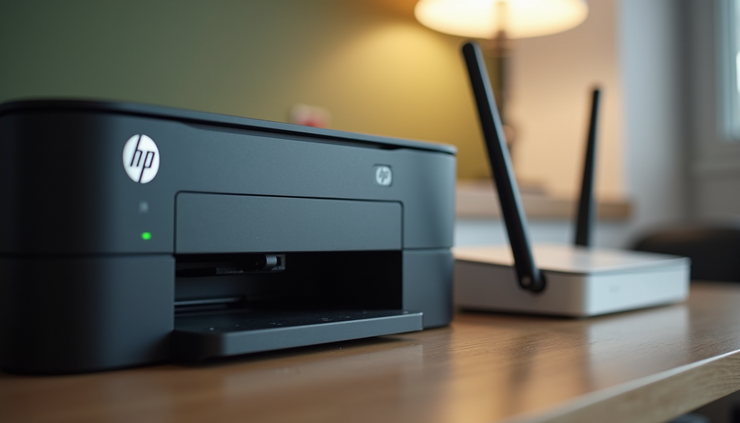
Connect Multiple Devices to Your HP Printer
Once your printer is connected to Wi-Fi, you can print from various devices on the same network:
Windows PC: Add the printer via the Control Panel or Settings under Printers & Scanners.
Mac: Use System Preferences > Printers & Scanners to add the printer.
Smartphones/Tablets: Use the HP Smart app or native print options like AirPrint for iOS or Mopria for Android.
Make sure all devices are connected to the same Wi-Fi network as the printer for seamless printing.
Advanced Settings and Security Tips
For users who want more control or enhanced security:
Assign a static IP address to your printer through your router’s settings to avoid connection drops.
Enable WPA2 or WPA3 encryption on your Wi-Fi network for better security.
Disable Wi-Fi Direct if you do not use it, to reduce unauthorized access.
Regularly update your printer’s firmware to patch security vulnerabilities.
These steps help maintain a stable and secure wireless printing environment.


Comments