Effortlessly Connecting HP WiFi Printers: Your Ultimate Guide
- workwebsite2
- May 20
- 4 min read

Connecting your HP printer to WiFi is no longer a daunting task. With the right steps and a bit of guidance, you can have your printer wirelessly linked to your network in no time. This seamless connection empowers your small business to print documents efficiently, without the hassle of cables or complicated setups. I’m here to walk you through every step, ensuring you master the art of connecting HP WiFi printers with confidence and ease.
Mastering the Art of Connecting HP WiFi Printers
When it comes to connecting HP WiFi printers, simplicity and precision are key. The process is designed to be user-friendly, but knowing the exact steps can save you time and frustration. Whether you’re setting up a new printer or reconnecting an existing one, the goal is to establish a stable wireless link that supports your business’s printing needs.
Here’s a quick overview of what you’ll need before you start:
A stable WiFi network with a known SSID and password
Your HP printer powered on and within range of the router
A computer or mobile device connected to the same WiFi network
Once you have these essentials ready, the setup becomes straightforward. You’ll navigate through your printer’s control panel or use HP’s Smart app to initiate the connection. The process involves selecting your WiFi network, entering the password, and confirming the connection. It’s that simple!
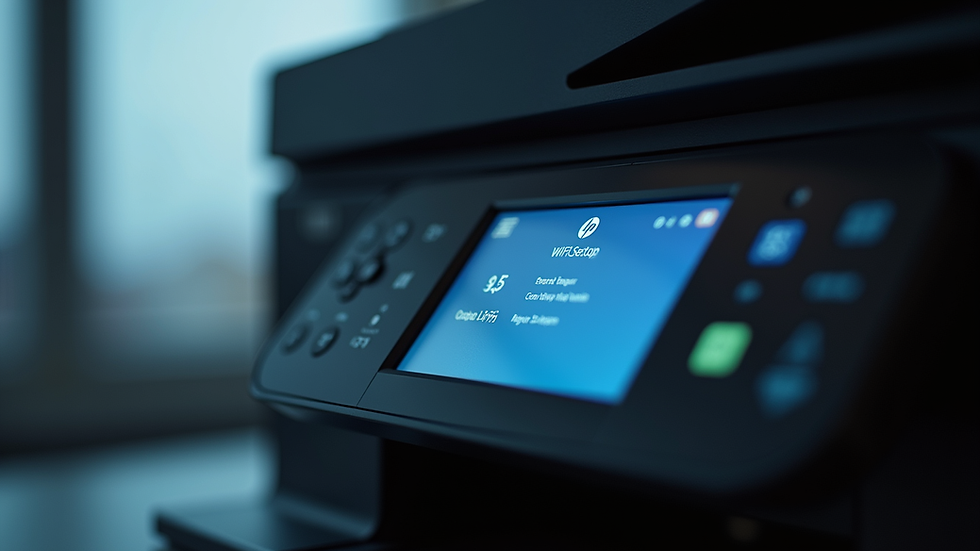
How do I connect my wireless printer to a new Wi-Fi?
Changing your WiFi network or moving your printer to a new location means you’ll need to connect your wireless printer to a new WiFi. This is a common scenario for small businesses upgrading their network or relocating offices. Here’s how you can do it efficiently:
Reset the Printer’s Network Settings
Most HP printers have an option to reset network settings to default. This clears previous WiFi configurations and prepares the printer for a fresh connection.
Access the Wireless Setup Wizard
On the printer’s control panel, navigate to the Wireless or Network settings menu. Select the Wireless Setup Wizard to scan for available networks.
Select Your New WiFi Network
From the list of detected networks, choose your new WiFi SSID. Make sure it’s the correct network associated with your business.
Enter the WiFi Password
Input the password carefully. Remember, passwords are case-sensitive, so double-check before confirming.
Confirm and Test the Connection
After the printer connects, print a wireless test report or a network configuration page to verify the connection status.
If you encounter any issues, restarting your router and printer often resolves minor glitches. Also, ensure your printer’s firmware is up to date for optimal compatibility.
Step-by-Step Guide to Connect Your HP Printer to WiFi
Let’s dive deeper into the exact steps to connect your HP printer to WiFi. This detailed guide will help you avoid common pitfalls and get your printer online quickly.
Step 1: Prepare Your Printer and Network
Ensure your printer is plugged in and turned on.
Confirm your WiFi network is active and you know the password.
Place the printer within range of your WiFi router to avoid signal issues.
Step 2: Use the Printer’s Control Panel
On the printer’s touchscreen or control panel, find the Wireless or Network icon.
Select Wireless Setup Wizard. This tool scans for available networks.
Choose your WiFi network from the list.
Enter your WiFi password using the on-screen keyboard.
Confirm the connection and wait for the printer to connect.
Step 3: Install HP Smart App (Optional but Recommended)
Download the HP Smart app on your computer or mobile device.
Open the app and select Add Printer.
Follow the prompts to connect your printer to the WiFi network.
The app also helps with driver installation and printer management.
Step 4: Print a Test Page
Once connected, print a test page to ensure everything is working perfectly.
This confirms your printer is communicating with your network and ready for business use.

Troubleshooting Common WiFi Connection Issues
Even with a smooth setup process, you might face occasional hiccups. Here are some common issues and how to fix them:
Printer Not Finding WiFi Network
Make sure your router is broadcasting on a compatible frequency (2.4 GHz is preferred for most printers). Also, check if the printer is within range.
Incorrect Password Errors
Double-check your WiFi password. If you recently changed it, update the printer settings accordingly.
Printer Offline or Not Responding
Restart your printer and router. Sometimes, a simple reboot resolves connectivity problems.
Firmware Outdated
Visit HP’s official website or use the HP Smart app to update your printer’s firmware. Updated firmware improves performance and fixes bugs.
Firewall or Security Software Blocking Connection
Temporarily disable firewall or antivirus software to see if they are interfering with the connection. Adjust settings if necessary.
Why Wireless Printing is a Game-Changer for Your Business
Connecting your HP printer to WiFi isn’t just about convenience - it’s a strategic move that transforms your business operations. Wireless printing offers:
Flexibility: Print from anywhere in your office without being tethered to cables.
Efficiency: Multiple devices can connect to the printer simultaneously, speeding up workflows.
Space-saving: Eliminate clutter caused by cables and create a cleaner workspace.
Scalability: Easily add more devices or printers as your business grows.
By mastering how to connect hp wifi printer, you’re not just setting up a device; you’re empowering your business with smarter, faster, and more reliable printing solutions.
Taking Your Printing Experience to the Next Level
Now that your HP printer is connected to WiFi, it’s time to explore additional features that enhance productivity:
Mobile Printing: Use apps like HP Smart or AirPrint to print directly from your smartphone or tablet.
Cloud Printing: Connect your printer to cloud services for remote printing capabilities.
Scheduled Maintenance: Set reminders for ink or toner replacement to avoid downtime.
Secure Printing: Enable password-protected printing to safeguard sensitive documents.
Embracing these features ensures your printing setup is not only connected but also optimized for your business’s evolving needs.
Connecting your HP printer to WiFi is a straightforward process that unlocks a world of convenience and efficiency. By following these steps and tips, you’ll enjoy seamless wireless printing that supports your business goals. Remember, if you ever need a refresher or assistance, resources like how to connect hp wifi printer provide detailed guidance to keep you on track. Embrace the power of wireless printing and watch your business operations soar!


Comments