HP LaserJet Printer Comprehensive Setup and Maintenance Guide
- workwebsite2
- Jan 18
- 3 min read

Setting up and maintaining a printer can feel overwhelming, especially if you are not tech-savvy. The HP LaserJet Printer Ultimate Setup, Configuration & Maintenance Guide is designed to simplify this process. Whether you just bought your first HP LaserJet printer or want to keep your current one running smoothly, this guide will walk you through every step clearly and practically.
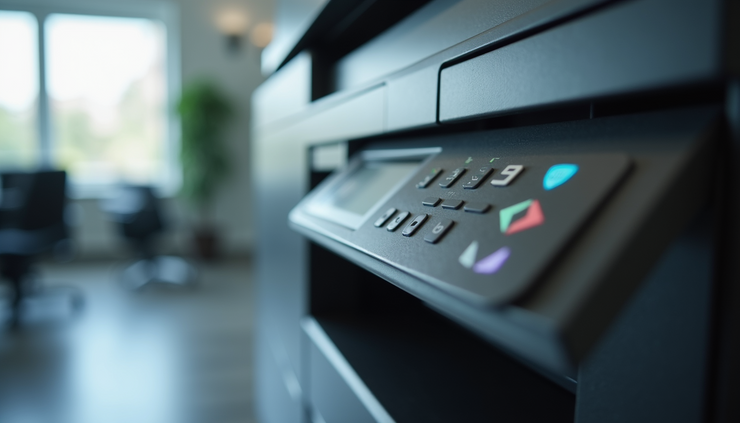
Unboxing and Initial Setup
When you first open your HP LaserJet printer box, you will find the printer, power cable, toner cartridge, user manual, and installation CD or USB drive. Follow these steps to get started:
Remove all packaging materials including protective tapes and plastic covers.
Install the toner cartridge by opening the front cover and sliding it into place until it clicks.
Load paper into the input tray. Use standard letter or A4 size paper for best results.
Connect the power cable to the printer and plug it into an outlet.
Turn on the printer using the power button on the front panel.
At this point, your printer is physically ready. The next step is to connect it to your computer or network.
Connecting Your Printer to a Computer or Network
You can connect your HP LaserJet printer in several ways depending on your setup:
USB connection: Plug the USB cable from the printer to your computer. This is the simplest method for one device.
Wireless connection: Use the printer’s control panel to find your Wi-Fi network and enter the password. This allows multiple devices to print without cables.
Wired network connection: Connect an Ethernet cable from the printer to your router for a stable network connection.
Once connected, install the printer drivers and software. You can use the installation CD or download the latest drivers from the HP website. Follow the on-screen instructions to complete the installation.
Configuring Printer Settings
After installation, customize your printer settings to suit your needs:
Print quality: Choose between draft, normal, or best quality depending on your document type.
Paper size and type: Set the default paper size and type in the printer preferences.
Duplex printing: Enable double-sided printing to save paper.
Energy-saving mode: Activate sleep mode to reduce power consumption when the printer is idle.
These settings help you get the best performance and efficiency from your HP LaserJet printer.
Routine Maintenance Tips
Keeping your printer in good condition extends its life and prevents common problems. Here are some simple maintenance tips:
Clean the exterior and paper trays regularly with a soft, dry cloth.
Remove dust and debris inside the printer using compressed air or a soft brush.
Replace toner cartridges promptly when print quality declines or the printer alerts you.
Avoid overloading the paper tray to prevent jams.
Run the printer’s built-in cleaning cycle occasionally to clear print heads and rollers.
Regular maintenance reduces downtime and keeps your prints sharp and clear.

Troubleshooting Common Issues
Even with proper care, you might encounter some issues. Here are solutions to frequent problems:
Paper jams: Remove jammed paper carefully from the input or output tray. Check for torn pieces inside the printer.
Poor print quality: Clean the print heads and check toner levels. Replace cartridges if necessary.
Printer not responding: Restart the printer and computer. Check cables and network connections.
Error messages: Refer to the user manual or HP support website for specific error codes.
If problems persist, contacting HP customer support or a professional technician is recommended.
Updating Firmware and Software
Keeping your printer’s firmware and software updated improves performance and security. Check for updates regularly:
Visit the HP support website and enter your printer model.
Download and install available firmware updates.
Update printer drivers on your computer through the HP software or device manager.
Updated software ensures compatibility with your devices and fixes known bugs.

Tips for Efficient Printing
To get the most out of your HP LaserJet printer, consider these efficiency tips:
Use draft mode for internal documents to save toner.
Print multiple pages on one sheet when possible.
Set default printing to black and white if color is not needed.
Use print preview to avoid wasting paper on errors.
Schedule large print jobs during off-peak hours to avoid slowdowns.
These habits reduce costs and improve your printing experience.



Comments