The Ultimate Guide to Printer Connectivity and Setup for Every Situation
- workwebsite2
- Jan 17
- 4 min read

Connecting and setting up a printer can sometimes feel like a puzzle. Whether you are working from home, managing a small office, or setting up a new device for personal use, understanding the best ways to connect and configure your printer saves time and frustration. This guide covers everything you need to know about printer connectivity and setup, with clear steps and examples for different scenarios.

Choosing the Right Printer Connection Type
Before setting up your printer, you need to decide how you want to connect it. The main connection types are:
USB Connection
This is the simplest and most common method. Plug the printer directly into your computer using a USB cable. It works well for single users and offers fast, reliable communication.
Wireless Connection (Wi-Fi)
Wireless printers connect to your home or office network, allowing multiple devices to print without cables. This setup is ideal for shared environments but requires a stable Wi-Fi network.
Wired Network Connection (Ethernet)
Connecting your printer via Ethernet cable to a router or switch provides a stable and fast connection, especially in offices with many users.
Bluetooth Connection
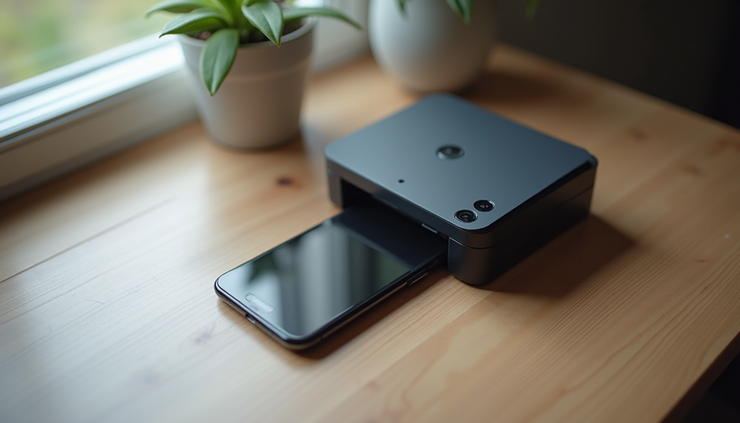
Less common for printers, Bluetooth allows direct printing from mobile devices within a short range. It’s useful for quick, local printing without network setup.
Each connection type has pros and cons. USB is straightforward but limits mobility. Wireless offers flexibility but depends on network quality. Ethernet is reliable but requires network infrastructure.
Setting Up Your Printer with USB
USB setup is usually plug-and-play, but following these steps ensures smooth installation:
Connect the USB cable from the printer to your computer.
Turn on the printer and wait for your operating system to detect it.
Install printer drivers if prompted. Most modern systems download drivers automatically, but you can also get them from the manufacturer’s website.
Print a test page to confirm the printer works.
For example, connecting a Canon or HP printer via USB typically involves plugging in the cable, powering on the device, and following on-screen prompts. If your computer does not recognize the printer, restarting both devices often helps.
Setting Up a Wireless Printer
Wireless printers offer convenience but require a few more steps:
Connect the printer to your Wi-Fi network. Use the printer’s control panel to find your network name (SSID) and enter the password. Some printers support WPS (Wi-Fi Protected Setup), which simplifies this process by pressing a button on the router and printer.
Install the printer software on your computer or mobile device. This software helps your device find the printer on the network.
Add the printer to your device. On Windows, go to Settings > Devices > Printers & scanners > Add a printer. On Mac, go to System Preferences > Printers & Scanners > Add (+) button.
Print a test page to verify the connection.
Wireless setup works well for families or offices where multiple users need access. For example, an Epson wireless printer can connect to a home network and allow printing from laptops, tablets, and smartphones without cables.

Using Ethernet for Network Printing
If your printer supports Ethernet, this method offers a stable connection for multiple users:
Connect the printer to your router or switch using an Ethernet cable.
Turn on the printer and check the network settings to confirm it has an IP address.
Install printer drivers on each computer that will use the printer.
Add the printer by IP address if it does not appear automatically. This option is available in printer setup menus on most operating systems.
Print a test page to ensure everything works.
This setup is common in offices where many users share one printer. For example, a Brother printer connected via Ethernet can handle large print jobs without wireless interference.
Troubleshooting Common Printer Setup Issues
Even with clear steps, problems can occur. Here are solutions to frequent issues:
Printer not found on network
Check Wi-Fi signal strength, restart the printer and router, and confirm the printer is connected to the correct network.
Driver installation fails
Download the latest drivers directly from the printer manufacturer’s website. Avoid using outdated CDs.
Print jobs stuck in queue
Clear the print queue from your computer’s printer settings and restart the print spooler service on Windows.
Slow printing over wireless
Move the printer closer to the router or switch to Ethernet if possible.
Printer offline message
Ensure the printer is powered on, connected, and set as the default printer on your device.
Tips for Mobile and Cloud Printing
Many modern printers support printing from smartphones and tablets. To set this up:
Use apps like Apple AirPrint, Google Cloud Print (deprecated but replaced by manufacturer apps), or the printer’s own app.
Connect your mobile device to the same Wi-Fi network as the printer.
Follow app instructions to add and print documents or photos.
Cloud printing allows sending print jobs remotely, useful for printing documents while away from home or office. Services like HP ePrint or Epson Connect enable this feature.
Final Thoughts on Printer Connectivity and Setup
Setting up a printer does not have to be complicated. Choosing the right connection type based on your needs and following clear steps will get your printer running quickly. USB is best for simple, direct connections. Wireless offers flexibility for multiple users. Ethernet provides stability for busy networks. Mobile and cloud printing add convenience for modern workflows.
If you encounter issues, troubleshooting common problems often resolves them without expert help. Keep your printer drivers updated and maintain a strong network connection for the best experience.


Comments