Connecting Your HP WiFi Printer Easily: A Complete Guide to Setup HP Wireless Printer
- workwebsite2
- Apr 6
- 4 min read

Setting up your HP wireless printer can feel like a daunting task, but I’m here to tell you it doesn’t have to be. With the right steps and a bit of guidance, you can have your printer connected and ready to go in no time. Whether you’re printing invoices, marketing materials, or everyday documents, a smooth printer setup is essential for keeping your small business running efficiently. Let’s dive into the simple, straightforward process to setup HP wireless printer and get your office printing seamlessly.
Why You Should Setup HP Wireless Printer for Your Business
Wireless printing offers incredible flexibility and convenience. Imagine the freedom of printing from any device in your office without the hassle of cables. This setup reduces clutter, increases mobility, and streamlines your workflow. For small businesses aiming to simplify IT operations, a wireless printer is a game-changer.
Here’s why you should prioritize setting up your HP wireless printer:
Mobility: Print from laptops, smartphones, or tablets anywhere within your Wi-Fi range.
Efficiency: Multiple users can access the printer without physically connecting devices.
Space-saving: No need for tangled cables or dedicated printer stations.
Cost-effective: Avoid additional hardware like print servers or USB hubs.
By investing a little time in the setup, you’re unlocking a powerful tool that supports your business’s digital excellence.
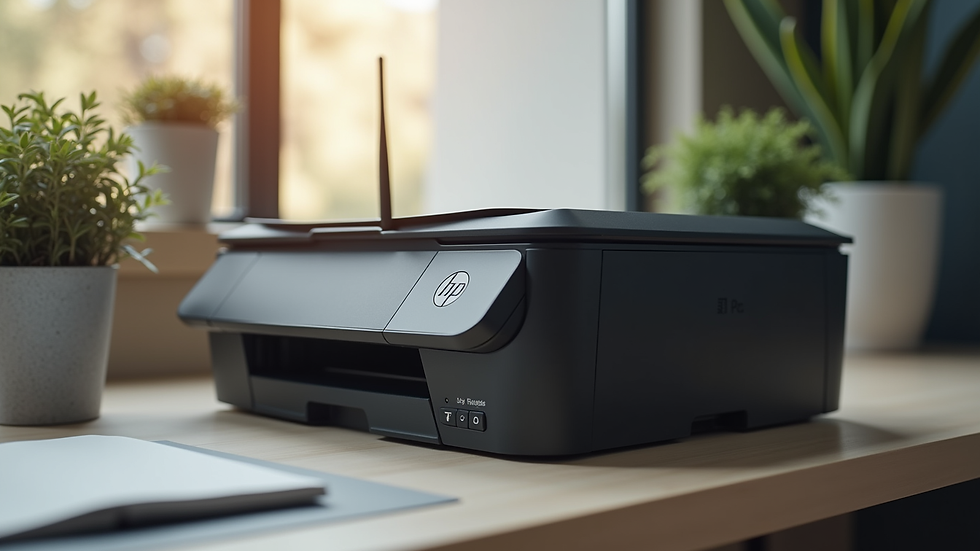
Step-by-Step Guide to Setup HP Wireless Printer
Getting your HP wireless printer connected is easier than you think. Follow these clear, actionable steps to get started:
Unbox and Power On
Remove the printer from its packaging, plug it into a power source, and turn it on. Make sure you have ink cartridges installed and paper loaded.
Connect to Wi-Fi Network
Use the printer’s control panel to navigate to the wireless setup wizard. Select your Wi-Fi network and enter the password carefully. This connects your printer to your office network.
Install Printer Software
On your computer or device, download the latest HP printer software from the official HP website. This software includes drivers and tools necessary for communication between your device and the printer.
Add Printer to Your Device
Once the software is installed, add the printer to your device’s list of available printers. This step varies slightly depending on your operating system but is usually straightforward.
Print a Test Page
Confirm everything is working by printing a test page. This ensures your printer is properly connected and ready for business use.
By following these steps, you’ll have your HP wireless printer up and running smoothly, ready to handle all your printing needs.
How do I connect my wireless printer to a new Wi-Fi?
Changing your Wi-Fi network or moving your printer to a new location means reconnecting it to a different wireless network. Here’s how to do it without any headaches:
Reset the Printer’s Network Settings
Most HP printers have an option to reset network settings via the control panel. This clears the old Wi-Fi information.
Access Wireless Setup Wizard
After resetting, go back to the wireless setup wizard on the printer’s display. Select your new Wi-Fi network and enter the password.
Reinstall or Update Software if Needed
If your device doesn’t automatically detect the printer on the new network, reinstall the HP software or update the drivers.
Verify Connection
Print a test page to confirm the printer is connected to the new Wi-Fi network and ready to use.
This process ensures your printer stays connected even as your network environment changes, keeping your business operations uninterrupted.
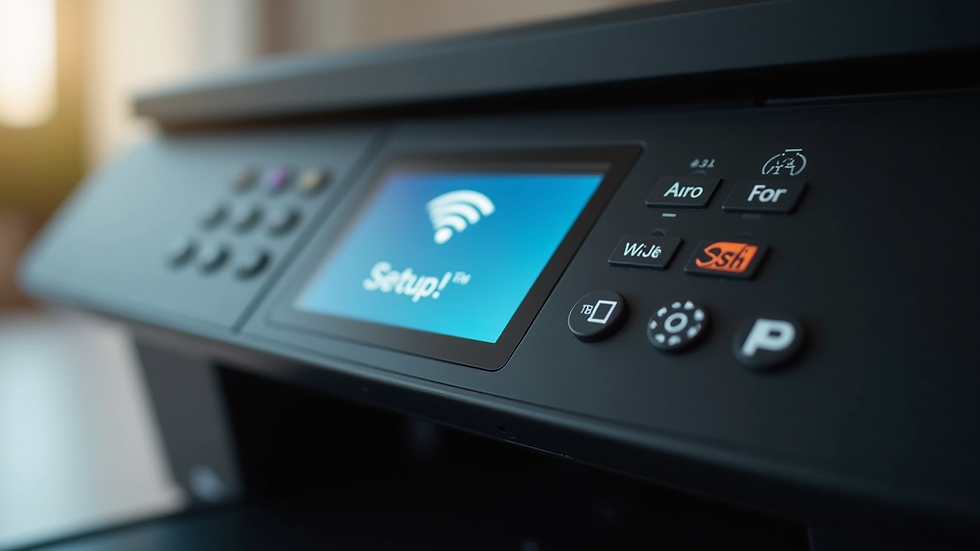
Troubleshooting Common Wireless Printer Connection Issues
Even with the best instructions, sometimes things don’t go as planned. Here are some common issues and how to fix them quickly:
Printer Not Found on Network
Ensure your printer and device are on the same Wi-Fi network. Restart your router and printer to refresh connections.
Incorrect Wi-Fi Password
Double-check the password entered on the printer. A single typo can prevent connection.
Firewall or Security Software Blocking Connection
Temporarily disable firewall or antivirus software to see if it’s interfering with the printer setup.
Outdated Printer Drivers
Visit the HP website to download the latest drivers and software updates.
Printer Offline Status
Set the printer as the default device and clear any print queues that might be stuck.
By addressing these issues methodically, you can resolve most connection problems without needing professional help.
Maximizing Your HP Wireless Printer for Business Efficiency
Once your printer is connected, it’s time to leverage its full potential. Here are some tips to maximize your HP wireless printer’s impact on your business:
Enable Mobile Printing
Use HP’s mobile printing apps or AirPrint to print directly from smartphones and tablets.
Set Up Printer Sharing
Allow multiple users in your office to access the printer without complicated setups.
Schedule Regular Maintenance
Keep your printer in top shape by cleaning print heads and updating firmware regularly.
Use Print Management Tools
Monitor usage, set print quotas, and reduce waste with built-in or third-party print management software.
Secure Your Printer
Protect sensitive documents by enabling password protection and secure printing features.
These strategies help you get the most out of your wireless printer, boosting productivity and supporting your business’s digital transformation.
Your Next Step to Seamless Printing
Now that you know exactly how to setup HP wireless printer and troubleshoot common issues, you’re ready to take control of your office printing. If you want a detailed walkthrough on how to connect hp wifi printer, this resource is a fantastic place to start.
By mastering your printer setup, you’re not just connecting a device - you’re empowering your business with reliable, efficient technology. Embrace the simplicity, enjoy the flexibility, and watch your productivity soar. Your HP wireless printer is more than a machine - it’s a vital partner in your journey toward digital excellence.


Comments