Step by Step Guide to Connect Your HP Printer to Wi-Fi Using Common Methods
- workwebsite2
- Jan 17
- 3 min read

Connecting your HP printer to Wi-Fi can save time and make printing more convenient. Whether you want to print from your laptop, smartphone, or tablet, a wireless connection removes the hassle of cables and allows multiple devices to share the printer. This guide walks you through the most common and straightforward methods to get your HP printer online and ready to print.

Prepare Your Printer and Network Connect Your HP Printer
Before starting the connection process, make sure you have the following ready:
Your Wi-Fi network name (SSID)
Your Wi-Fi password
The printer powered on and within range of your wireless router
A device (computer, smartphone, or tablet) connected to the same Wi-Fi network
Having these details handy will make the setup smoother.
Method 1: Use the HP Printer Control Panel Connect Your HP Printer
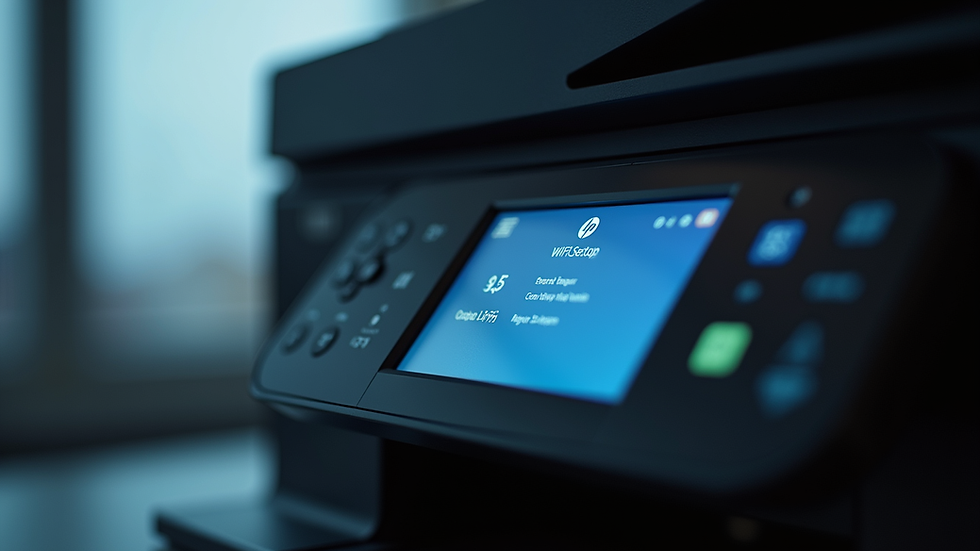
Many HP printers have a built-in touchscreen or control panel that lets you connect directly to Wi-Fi without needing a computer.
Steps:
On the printer’s control panel, find and tap the Wireless or Network icon.
Select Wireless Setup Wizard or a similar option.
The printer will scan for available Wi-Fi networks. Choose your network name (SSID) from the list.
Enter your Wi-Fi password using the on-screen keyboard.
Confirm the connection. The printer will attempt to connect to the network.
Once connected, the wireless icon on the printer should show a solid light or signal strength bars.
This method works best for printers with touchscreens or easy-to-navigate menus.
Method 2: Use the HP Smart App
The HP Smart app is a free tool available for Windows, macOS, Android, and iOS. It simplifies printer setup and management.
Steps:
Download and install the HP Smart app from your device’s app store or from HP’s official website.
Open the app and tap Add Printer.
The app will search for nearby printers. Select your HP printer from the list.
Follow the on-screen instructions to connect the printer to your Wi-Fi network. This usually involves entering your Wi-Fi password.
After setup, the app confirms the connection and allows you to print, scan, and manage printer settings.
The HP Smart app is especially useful if your printer does not have a touchscreen or if you prefer using your smartphone or tablet.

Method 3: Connect Using WPS (Wi-Fi Protected Setup)
If your router supports WPS, this method allows you to connect your printer without entering a password.
Steps:
On your printer, press the Wireless button or go to the wireless settings menu.
Select the WPS Push Button option.
Within two minutes, press the WPS button on your wireless router.
The printer and router will communicate and establish a connection automatically.
The printer’s wireless light will stop blinking and stay solid once connected.
WPS is a quick method but requires that your router supports it and that WPS is enabled.
Troubleshooting Tips
If your printer does not connect to Wi-Fi, try these steps:
Restart your printer and router.
Make sure your printer is within range of the router.
Double-check the Wi-Fi password for accuracy.
Update your printer’s firmware via the HP Smart app or HP website.
Temporarily disable any firewall or security software that might block the connection.
Reset the printer’s network settings and try again.
Verify Your Printer’s Connection
After connecting, print a wireless network test report to confirm the printer’s status.
How to print the report:
On the printer control panel, go to Settings > Reports > Wireless Network Test Report.
The report shows the connection status, signal strength, and IP address.
If the report shows a strong connection and valid IP address, your printer is ready to print wirelessly.

Final Thoughts
Connecting your HP printer to Wi-Fi opens up flexible printing options across your devices. Using the printer control panel, HP Smart app, or WPS method covers most common scenarios. If you run into issues, simple troubleshooting steps often resolve connection problems quickly. Once connected, enjoy the convenience of wireless printing from anywhere in your home or office.


Comments