Ultimate HP LaserJet Printer Setup Guide for Hassle-Free Printing
- workwebsite2
- Jan 18
- 3 min read

Setting up a new printer can feel overwhelming, especially if you want to avoid common pitfalls that slow down your workflow. This HP LaserJet Printer – Complete Setup Guide walks you through every step to get your printer ready quickly and smoothly. Whether you’re setting up your first printer or upgrading to a LaserJet model, this guide covers everything from unboxing to printing your first page.

Unboxing and Preparing Your HP LaserJet Printer for HP LaserJet Printer Setup Guide
Before connecting anything, carefully unpack your printer and check all included components. Most HP LaserJet printers come with:
Printer unit
Power cord
USB cable (optional, depending on model)
Starter toner cartridge
Setup guide and warranty information
Remove all protective tapes and packaging materials from the printer and toner cartridge. Insert the toner cartridge firmly into the printer’s cartridge slot until it clicks into place.
Tip: Keep the packaging until you confirm the printer works correctly. This helps if you need to return or exchange the product.
Connecting Your Printer to Power and Network
Plug the power cord into the printer and then into a wall outlet. Press the power button to turn on the printer. Wait for the printer to initialize, which may take a few minutes.
Next, connect your printer to your network. You have two main options:
Wired connection: Use an Ethernet cable to connect the printer directly to your router. This provides a stable connection, especially for office setups.
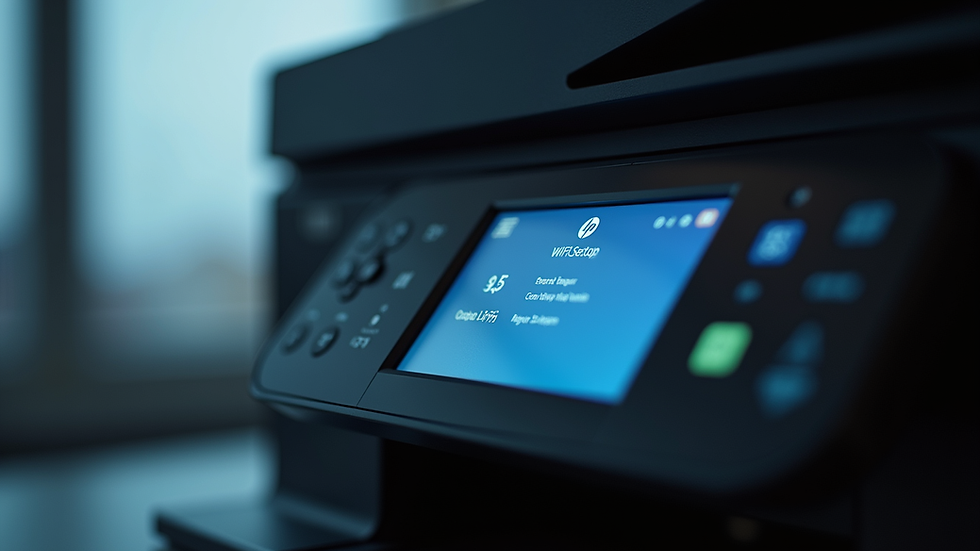
Wireless connection: Use the printer’s control panel to find your Wi-Fi network and enter the password. Many HP LaserJet models have a touchscreen or buttons to navigate network settings.
If your printer supports Wi-Fi Direct, you can connect your computer or mobile device directly to the printer without a router. This is useful for quick printing in small spaces.
Installing Printer Drivers and Software
Your computer needs the right drivers to communicate with the printer. Visit the official HP website and download the latest drivers for your specific LaserJet model. Avoid using generic drivers to ensure full functionality.
Follow these steps:
Go to HP’s support page.
Enter your printer model.
Download the full-feature driver and software package.
Run the installer and follow on-screen instructions.
During installation, the software will detect your printer on the network or via USB. Choose your connection type when prompted.
Example: For Windows 10 users, the HP Smart app simplifies setup and offers features like scanning and toner monitoring.

Configuring Printer Settings for Optimal Use
After installation, customize your printer settings for the best results:
Paper size and type: Set the default paper size (e.g., Letter, A4) and type (plain, photo, labels) in the printer preferences.
Print quality: Choose draft mode for quick prints or best quality for important documents.
Duplex printing: Enable double-sided printing to save paper.
Energy saving: Adjust sleep mode timing to reduce power consumption when idle.
Access these settings through your computer’s control panel or the HP Smart app.
Printing Your First Document
Test your setup by printing a simple document:
Open a text file or image.
Select Print from the menu.
Choose your HP LaserJet printer.
Check print settings.
Click Print.
If the printout looks good, your setup is complete. If you notice issues like streaks or faded text, run the printer’s cleaning utility from the software or control panel.

Troubleshooting Common Setup Issues
Even with a clear guide, problems can arise. Here are quick fixes for frequent issues:
Printer not found on network: Restart your router and printer. Ensure both are on the same Wi-Fi network.
Driver installation fails: Disable antivirus temporarily and run the installer as administrator.
Paper jams: Remove jammed paper carefully following the printer manual. Avoid overfilling the paper tray.
Poor print quality: Check toner levels and run cleaning cycles.
If problems persist, HP’s online support offers detailed troubleshooting tools and live chat.


Comments